
How to Use Two GitHub Accounts on One Computer (SSH + Git Config)
Summary
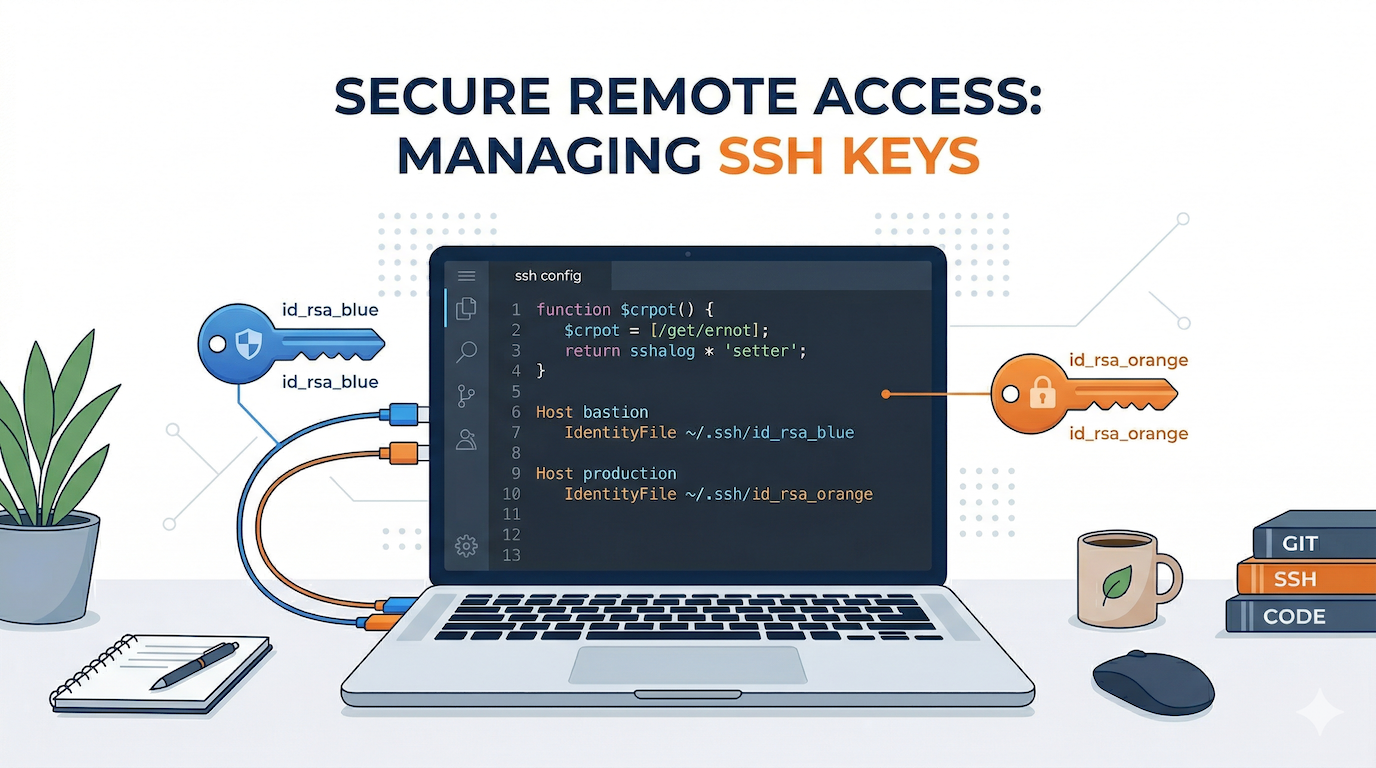
To use two GitHub accounts on one machine, you need three things: separate SSH keys for each account, SSH host aliases in ~/.ssh/config to route each account to its key, and Git conditional includes in ~/.gitconfig to auto-switch your commit identity by project directory. This setup takes about 10 minutes and works permanently on macOS, Linux, and Windows (WSL).
This guide walks through the complete setup, from key generation to verification.
Why You Need This
If you’re like most developers, you have at least two GitHub accounts – one for work and one for personal projects. Maybe you contribute to open source under your personal handle but push proprietary code under a corporate account. Or you consult for multiple clients, each with their own GitHub org.
The problem: Git has no built-in concept of “switch accounts.” Out of the box, every git push goes through the same identity. Commits show up under the wrong email. SSH authentication fails because GitHub sees the wrong key.
How the Solution Works
The solution has three layers that work together:
| Layer | What it does | Config file |
|---|---|---|
| SSH keys | Separate key pairs so GitHub knows which account is authenticating | ~/.ssh/id_ed25519_* |
| SSH config | Routes traffic to the right key based on a hostname alias | ~/.ssh/config |
| Git config | Sets the correct user.name and user.email per project directory | ~/.gitconfig |
All three must be in place. Miss one and you’ll get auth failures or commits attributed to the wrong person.
Step 1: Generate Separate SSH Keys
Create a dedicated key pair for each account. Use ed25519 – it’s faster and more secure than RSA.
# Personal account
ssh-keygen -t ed25519 -C "you@personal.com" -f ~/.ssh/id_ed25519_personal

# Work account
ssh-keygen -t ed25519 -C "you@company.com" -f ~/.ssh/id_ed25519_work
Use a passphrase for both. You’ll only type it once per session if you use ssh-agent.
Add the public keys to each GitHub account:
# Copy to clipboard (macOS)
pbcopy < ~/.ssh/id_ed25519_personal.pub
Then go to GitHub.com -> Settings -> SSH and GPG keys -> New SSH key and paste. Repeat with the work key on your work GitHub account.
Step 2: Configure SSH Host Aliases
This is the key trick. You create two aliases for github.com, each wired to a different SSH key.
Edit ~/.ssh/config:
# Personal GitHub
Host github-personal
    HostName github.com
    User git
    IdentityFile ~/.ssh/id_ed25519_personal
    IdentitiesOnly yes

# Work GitHub
Host github-work
    HostName github.com
    User git
    IdentityFile ~/.ssh/id_ed25519_work
    IdentitiesOnly yes
Why IdentitiesOnly yes matters: Without it, SSH cycles through every key in your agent. With multiple GitHub accounts, this causes “Permission denied” errors because GitHub matches the first key it sees – which may belong to the wrong account.
Test both connections:
ssh -T github-personal
# -> Hi personal-username! You've successfully authenticated...

ssh -T github-work
# -> Hi work-username! You've successfully authenticated...
If both greet you with the correct username, the SSH layer is working.
Step 3: Clone Repos Using the Right Host Alias
When cloning, replace github.com with your alias:
# Personal projects
git clone git@github-personal:your-personal-user/my-side-project.git

# Work projects
git clone git@github-work:your-company/internal-tool.git
For existing repos, update the remote URL:
cd ~/work/internal-tool
git remote set-url origin git@github-work:your-company/internal-tool.git
Step 4: Auto-Switch Git Identity by Directory
You don’t want to manually run git config user.email in every repo. Git’s conditional includes auto-switch your identity based on the folder path.
First, organize your projects into separate directories:
~/personal/     <- all personal repos here
~/work/         <- all work repos here
Edit your global ~/.gitconfig:
[user]
    name = Your Name
    email = you@personal.com    # default fallback

[includeIf "gitdir:~/work/"]
    path = ~/.gitconfig-work
Create ~/.gitconfig-work:
[user]
    name = Your Name
    email = you@company.com
Now every repo under ~/work/ automatically uses your work email. Everything else uses the default.
Verify it works:
cd ~/work/internal-tool
git config user.email
# -> you@company.com

cd ~/personal/my-side-project
git config user.email
# -> you@personal.com
Tip: Trailing slashes matter. Use
gitdir:~/work/notgitdir:~/work. Without the slash, conditional includes may not match correctly.
Step 5: Set Up ssh-agent for Passphrase Caching
macOS
Add both keys to your Keychain so you don’t re-enter passphrases after every reboot:
ssh-add --apple-use-keychain ~/.ssh/id_ed25519_personal
ssh-add --apple-use-keychain ~/.ssh/id_ed25519_work
Add this to the top of ~/.ssh/config:
Host *
    AddKeysToAgent yes
    UseKeychain yes
Linux
Start the agent in your shell profile (~/.bashrc or ~/.zshrc):
eval "$(ssh-agent -s)"
ssh-add ~/.ssh/id_ed25519_personal
ssh-add ~/.ssh/id_ed25519_work
Windows (WSL)
The setup is identical to Linux. If you’re using native Windows Git, use the Git Credential Manager instead of SSH agent.
Bonus: VS Code Profiles for Visual Separation
If you use VS Code, create separate profiles for each account:
- Gear icon -> Profiles -> Create Profile – name it “Personal” or “Work”
- Each profile can have its own extensions, themes, and settings
- Use a different color theme per profile for instant visual identification
Cmd+Shift+P-> “Profiles: Switch Profile” to swap
Pair this with VS Code workspace files (.code-workspace) that open in the correct profile automatically.
Bonus: GitHub CLI (gh) Multi-Account Support
If you use the GitHub CLI:
# Authenticate both accounts
gh auth login

# Switch between them
gh auth switch
The CLI respects the SSH config, so it uses the right key automatically.
Troubleshooting Common Issues
“Permission denied (publickey)”
This is the most common error. Debug with verbose SSH output:
ssh -vT github-work
Check for:
IdentitiesOnly yesset in your SSH config- The public key added to the correct GitHub account (not the other one)
- Correct file permissions:
chmod 600 ~/.ssh/id_ed25519_work
Commits showing wrong email
git config user.email    # Check current repo's email
git log --format='%ae' -1  # Check last commit's email
Fix: make sure the repo is inside the correct directory (~/work/ vs ~/personal/) and that your ~/.gitconfig has the includeIf directive with the trailing slash.
SSH agent not persisting after reboot
- macOS: add
UseKeychain yesandAddKeysToAgent yesto~/.ssh/config - Linux: add
ssh-addcommands to your shell profile
Quick Reference: Complete Setup Checklist
- [ ] Two SSH key pairs generated (
~/.ssh/id_ed25519_personal,~/.ssh/id_ed25519_work) - [ ] Public keys added to respective GitHub accounts
- [ ]
~/.ssh/configwith two Host aliases andIdentitiesOnly yes - [ ] Both connections tested with
ssh -T - [ ] Project directories organized (
~/personal/,~/work/) - [ ]
~/.gitconfigwith conditional includes - [ ]
~/.gitconfig-workwith work identity - [ ] ssh-agent configured for passphrase caching
- [ ] Existing repos updated with
git remote set-url
Once this is in place, you never think about it again. Clone under the right directory, push with the right identity, every time.
Frequently Asked Questions
Can I use more than two GitHub accounts?
Yes. Add a third SSH key, a third Host entry in ~/.ssh/config, and a third includeIf block in ~/.gitconfig. The pattern scales to any number of accounts.
Does this work with GitLab or Bitbucket too?
Yes. Replace github.com with gitlab.com or bitbucket.org in the HostName field. The SSH alias pattern is identical for any Git hosting service.
What about HTTPS instead of SSH?
You can use HTTPS with Git Credential Manager and store different tokens per host. However, the SSH approach described here is more reliable for multi-account setups because HTTPS credential helpers often conflict when multiple tokens exist for the same hostname.
Do I need to reconfigure this after a macOS update?
Usually not. SSH keys and config files survive macOS updates. However, major OS upgrades occasionally reset the ssh-agent keychain integration. If passphrases stop being cached, re-run the ssh-add --apple-use-keychain commands from Step 5.
Can I use the same email for commits across both accounts?
Technically yes, but it defeats the purpose. GitHub uses the commit email to associate commits with your profile. Using your work email on personal commits (or vice versa) means your contribution graph and commit history will be attributed to the wrong account.


